
Running a Nessus scan is the easy part. What happens next is where most teams lose time. The scan produces a list of findings. Someone has to decide which ones are real, which are noise, which need to be patched immediately, and who is responsible for patching them. Then those decisions need to reach the people doing the actual work.
The typical approach is a spreadsheet. Export the scan to CSV, open it in Excel, start adding columns for status and priority, email the relevant rows to the relevant people. It works until the finding count hits triple digits, the spreadsheet gets forwarded to the wrong person, or someone asks why a particular finding was dismissed six months ago and nobody can remember.
This post walks through the triage and ticket routing workflow in JuturnaReport, using a Nessus scan as the starting point.
The triage screen
After importing a .nessus file, every finding lands in the triage screen. The default view shows all findings across the engagement, with severity on the left and status, priority, and assignee columns on the right.
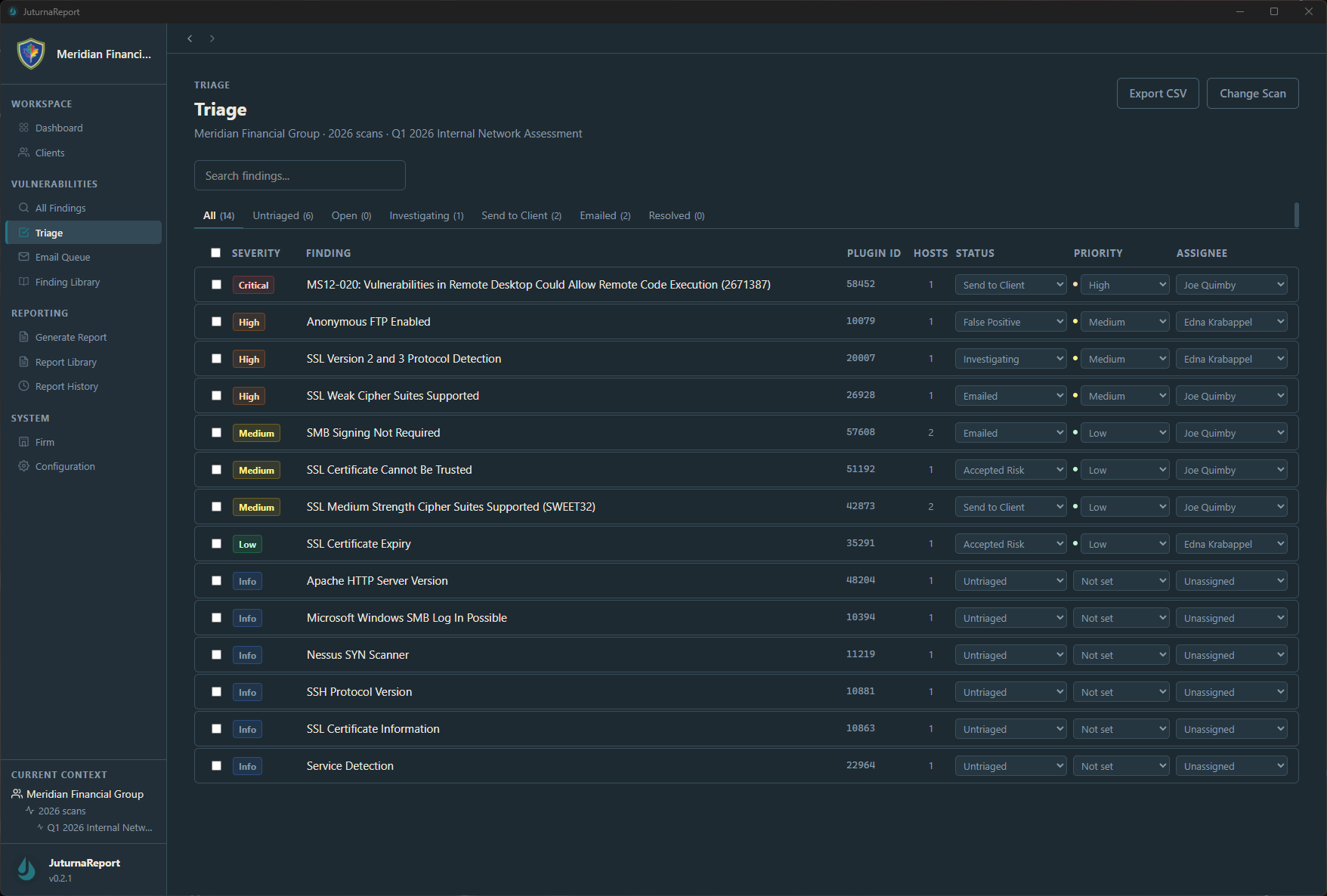
The status dropdown on each row is the core of the triage workflow. Every finding gets one of six dispositions: untagged (the default), send to client, false positive, investigating, snoozed, or resolved. The goal of a triage pass is to get every finding out of “untagged” and into one of the other states.
The filter tabs at the top of the screen divide the view by status. Working through the “untagged” tab systematically, rather than scrolling the full list, keeps the pass manageable. A scan returning several hundred findings looks more tractable when you are working through it fifty at a time by severity.
Priority and assignee can be set in bulk or per-finding. For findings going to remediation, setting the assignee at triage time means the ticket that gets generated already has a name attached.
Working through individual findings
For any finding that warrants closer review, the detail view gives you the full picture: plugin description, affected systems, raw plugin output, and the triage panel on the right side.
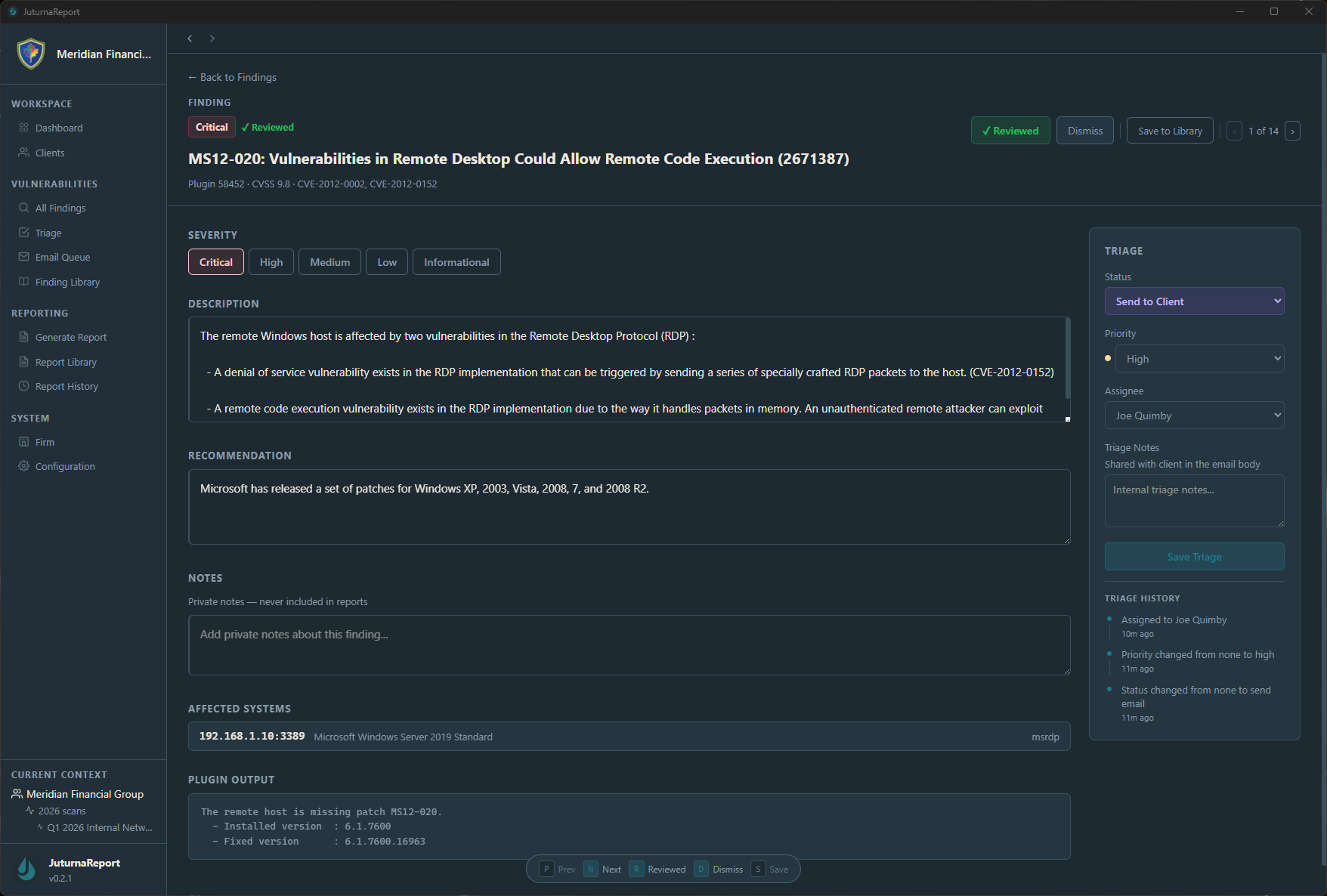
The triage panel is where the decisions get documented. Severity can be adjusted from the scanner’s default if your environment context warrants it: a critical finding on an isolated system and a critical finding on an internet-facing host are not the same risk, even if the CVSS score says they are. The adjusted severity is what appears in the final report.
Triage notes are free-text and included in the audit trail. If a finding is being dismissed because it is a known false positive for this scanner version, or because a compensating control is already in place, that reasoning goes in the notes. The triage history panel records every status change with a timestamp, so the decision trail is preserved automatically without any extra steps.
For findings you want to pull from the finding library rather than writing up from scratch, the library integration is available from the detail view. If you have previously documented a well-written description and remediation guidance for this vulnerability type, you pull it in and adjust for the current environment rather than starting over.
Tracking progress and routing findings
The dashboard gives a live view of where the engagement stands. The triage status panel shows how many findings are in each state, and the email queue counters show how many tickets are pending and how many have already been sent.
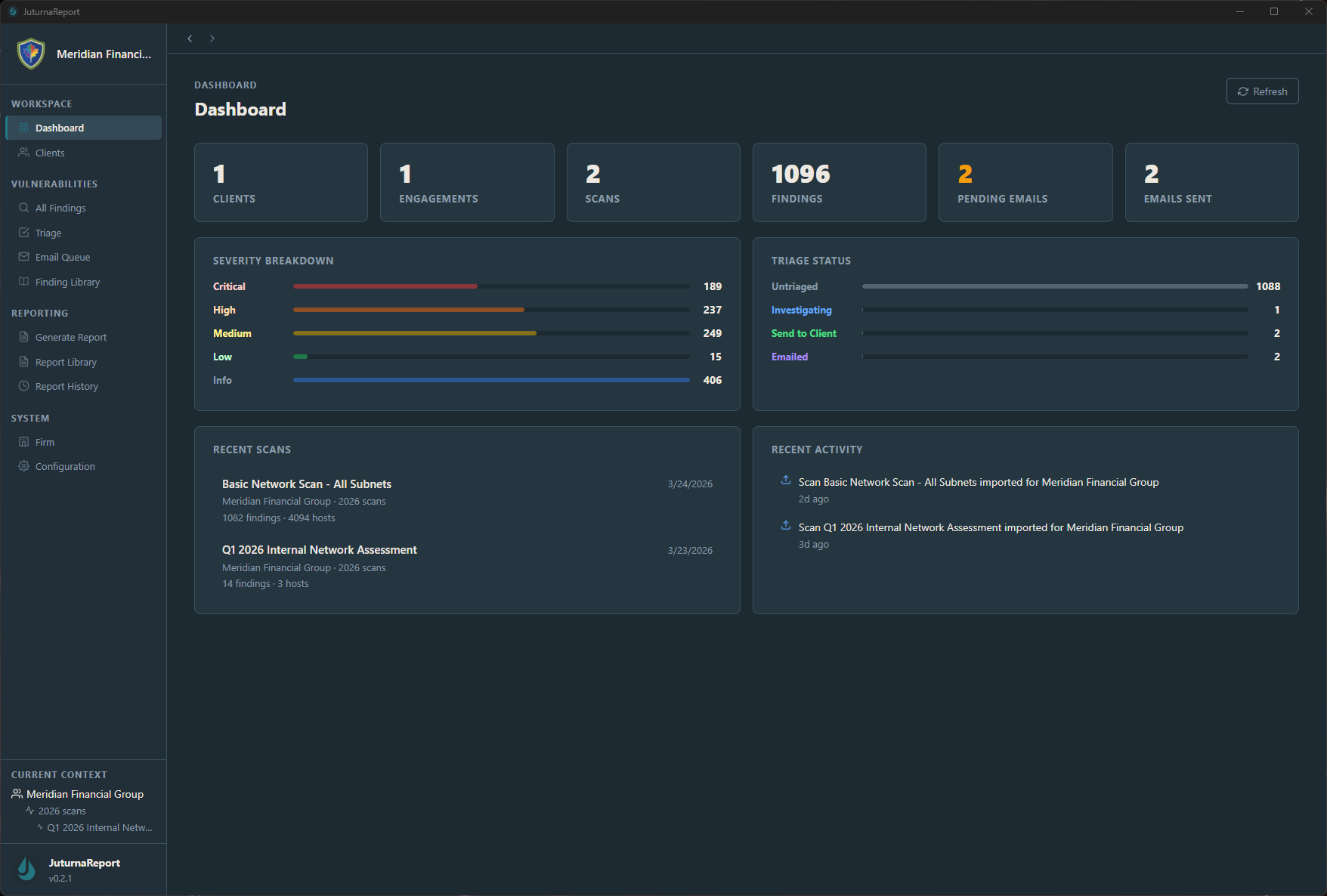
When triage is complete and the findings marked “send to client” represent what you actually want to remediate, the email queue handles routing. JuturnaReport generates one email per finding, addressed to the ticket system email configured on the client record, with the finding title as the subject and the description, affected systems, and remediation guidance as the body.
Any ticketing platform that accepts inbound email creates a ticket from that message. Jira, ServiceNow, Zendesk, Freshdesk, Linear, or a plain support alias. No API configuration. No OAuth flow. The SMTP settings are configured once in JuturnaReport and the send mechanism works from there regardless of what is on the receiving end.
What this replaces in practice
The manual version of this workflow involves exporting scanner output, maintaining a status spreadsheet that only one person can edit at a time, writing up findings individually in emails, and hoping the remediation team receives and logs them correctly. The triage history that would let you answer audit questions six months later does not exist unless someone built it by hand.
A structured triage tool with built-in routing does not make vulnerability management easier by automating judgment. The judgment still belongs to the analyst. It makes the process faster by handling everything around the judgment: the status tracking, the note-keeping, the audit trail, and the delivery to the people doing the fixing.
JuturnaReport runs locally on Windows with an encrypted local database, works offline including in air-gapped environments, and does not require a cloud account or server infrastructure. Early access pricing is $49/year or $149 lifetime, with one license covering up to three machines. Details at /pricing/.